




Your cloud,in your pocket.

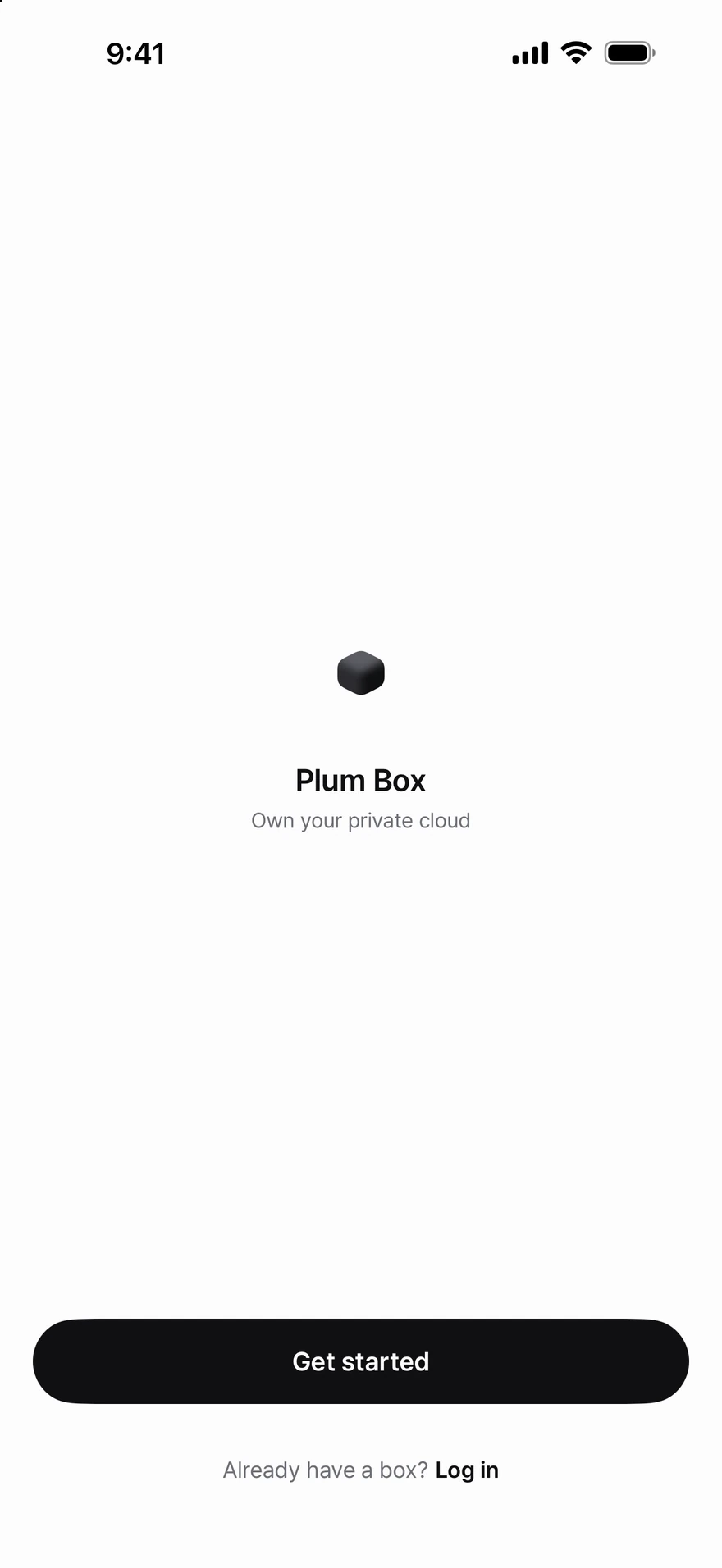
Your photos and files live on the Plum Box in your home. Back up your phone automatically and open everything from anywhere, with no monthly storage fees.

This app works with a Plum Box. You need one to use it.

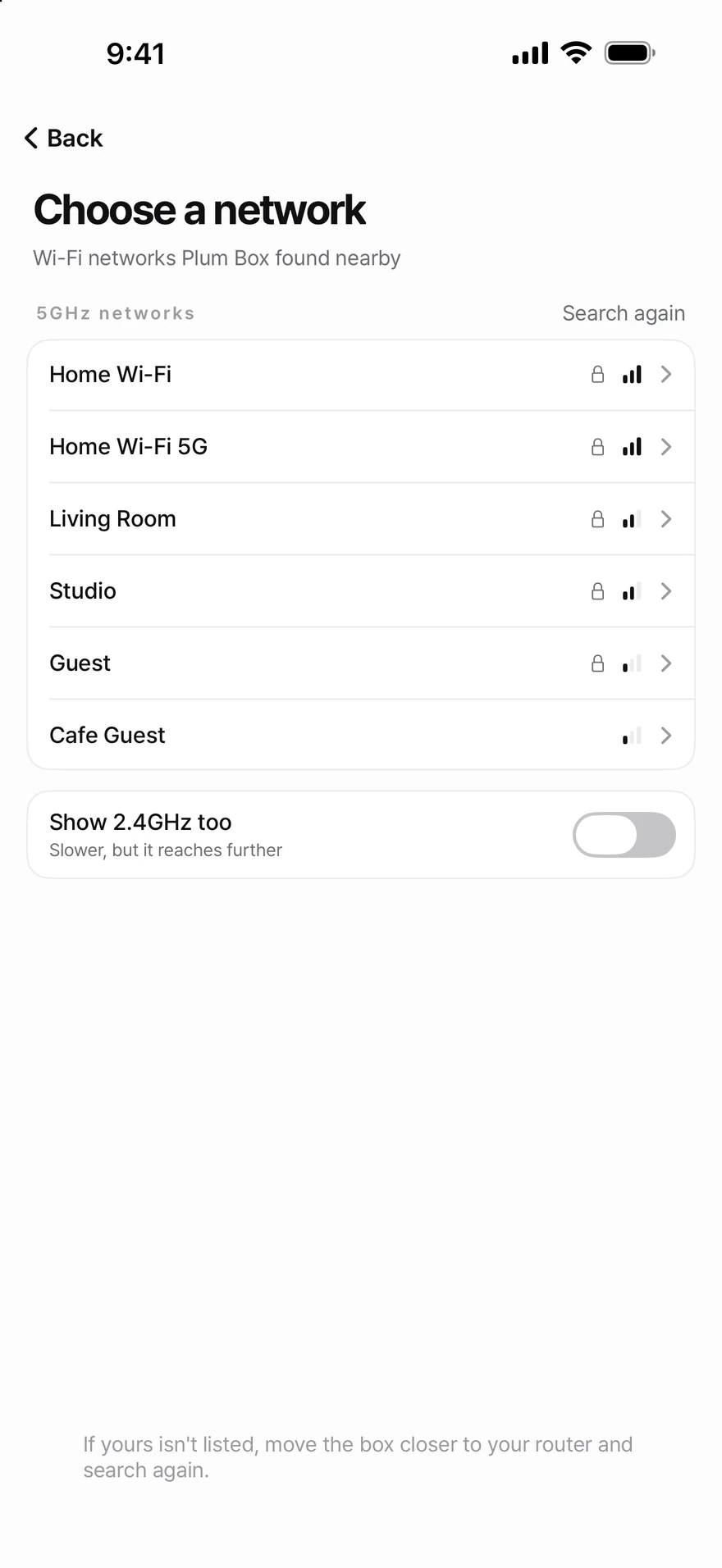
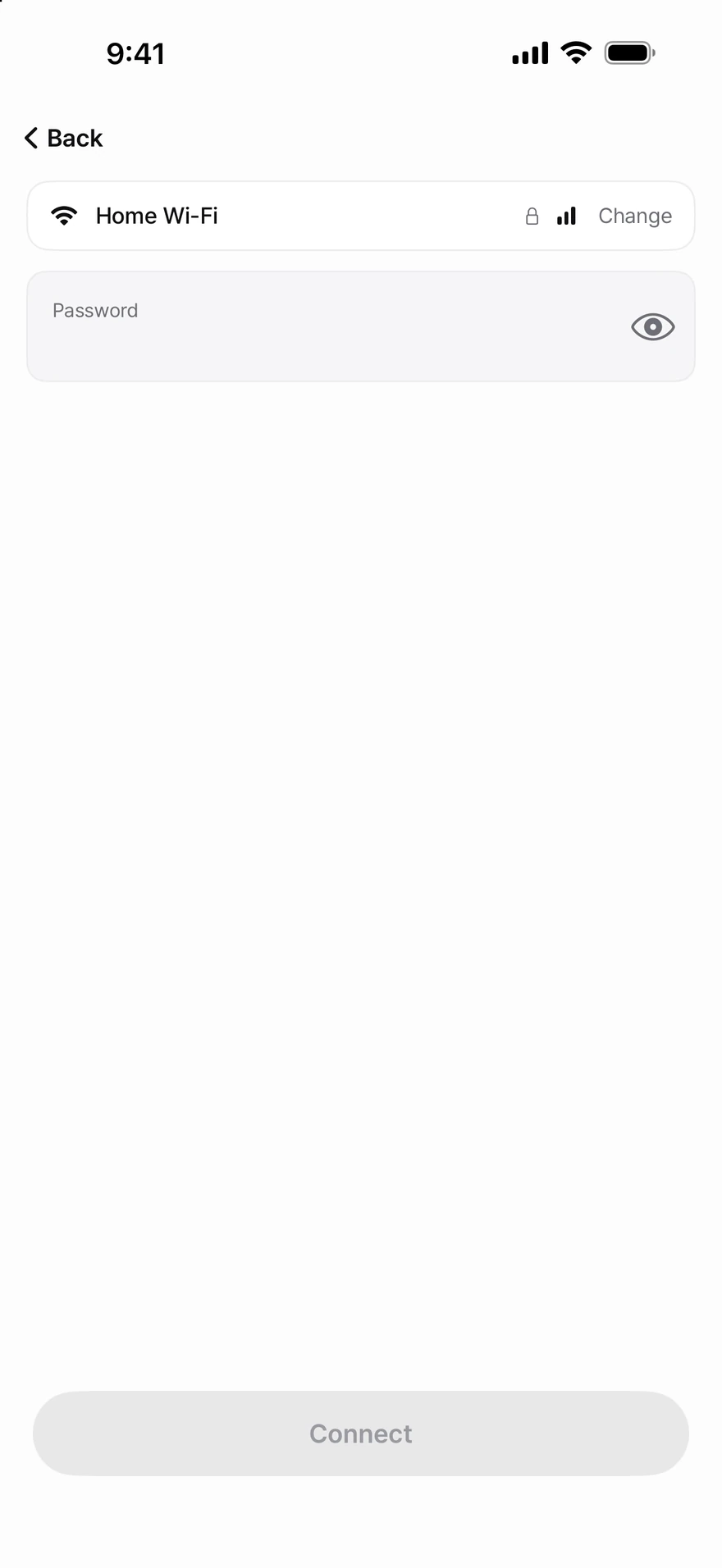
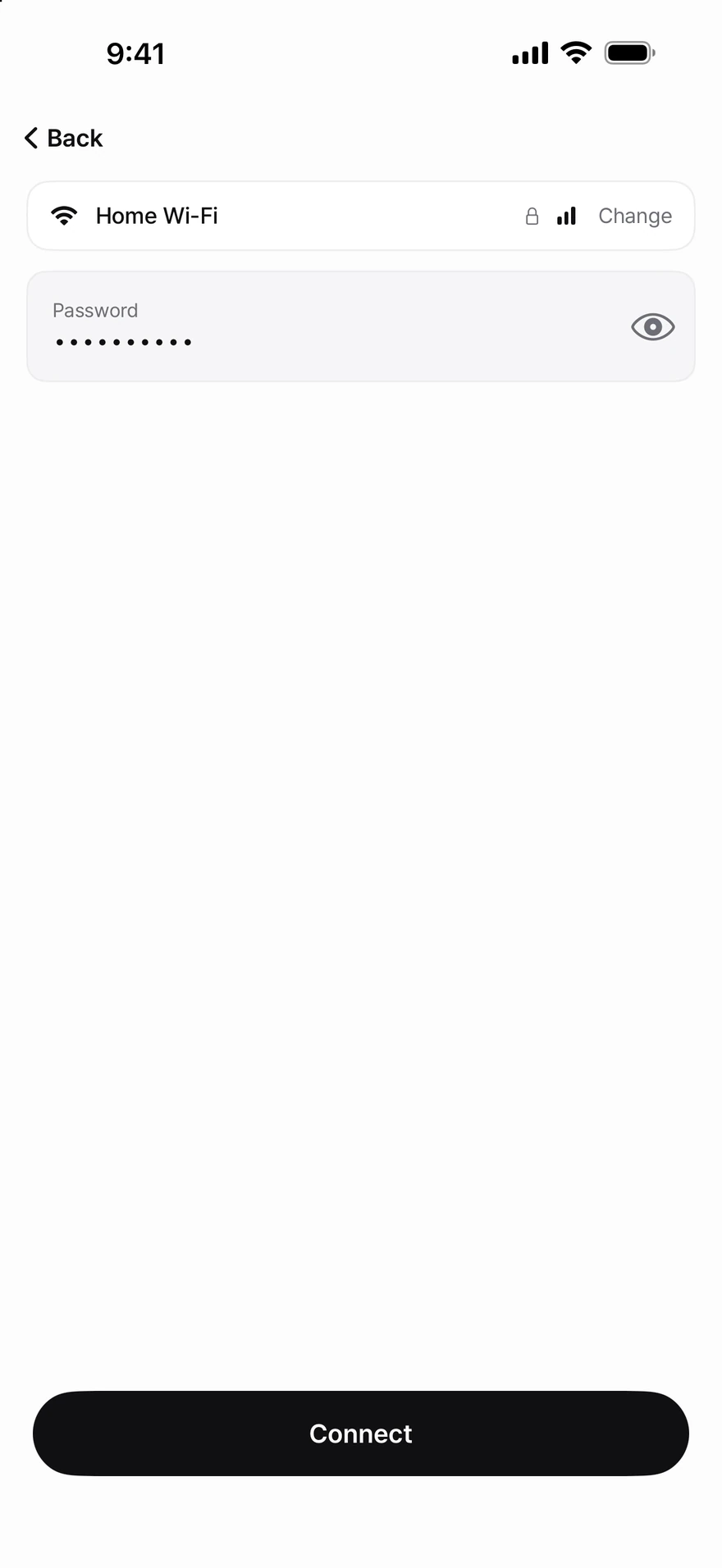
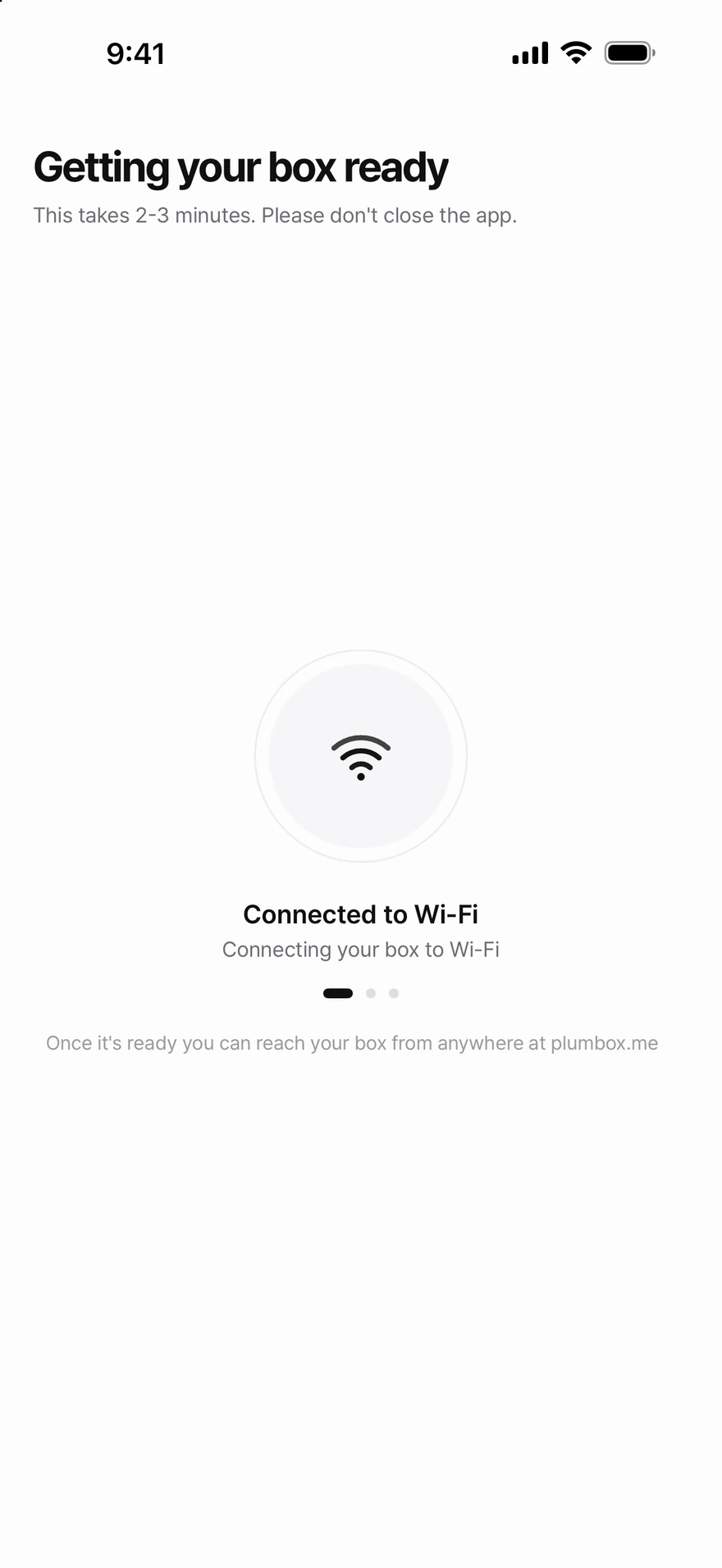
Screens from the app, on iPhone.

Setup

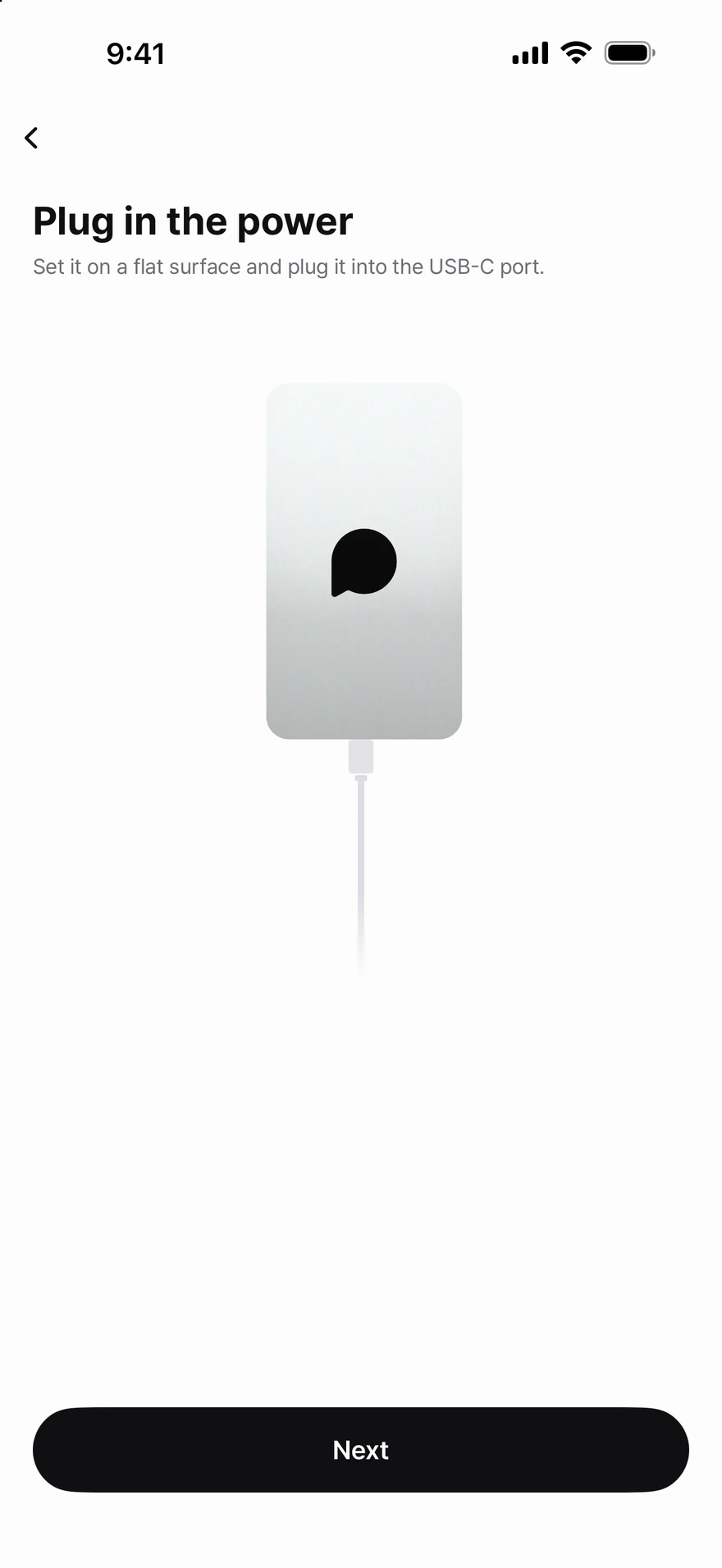
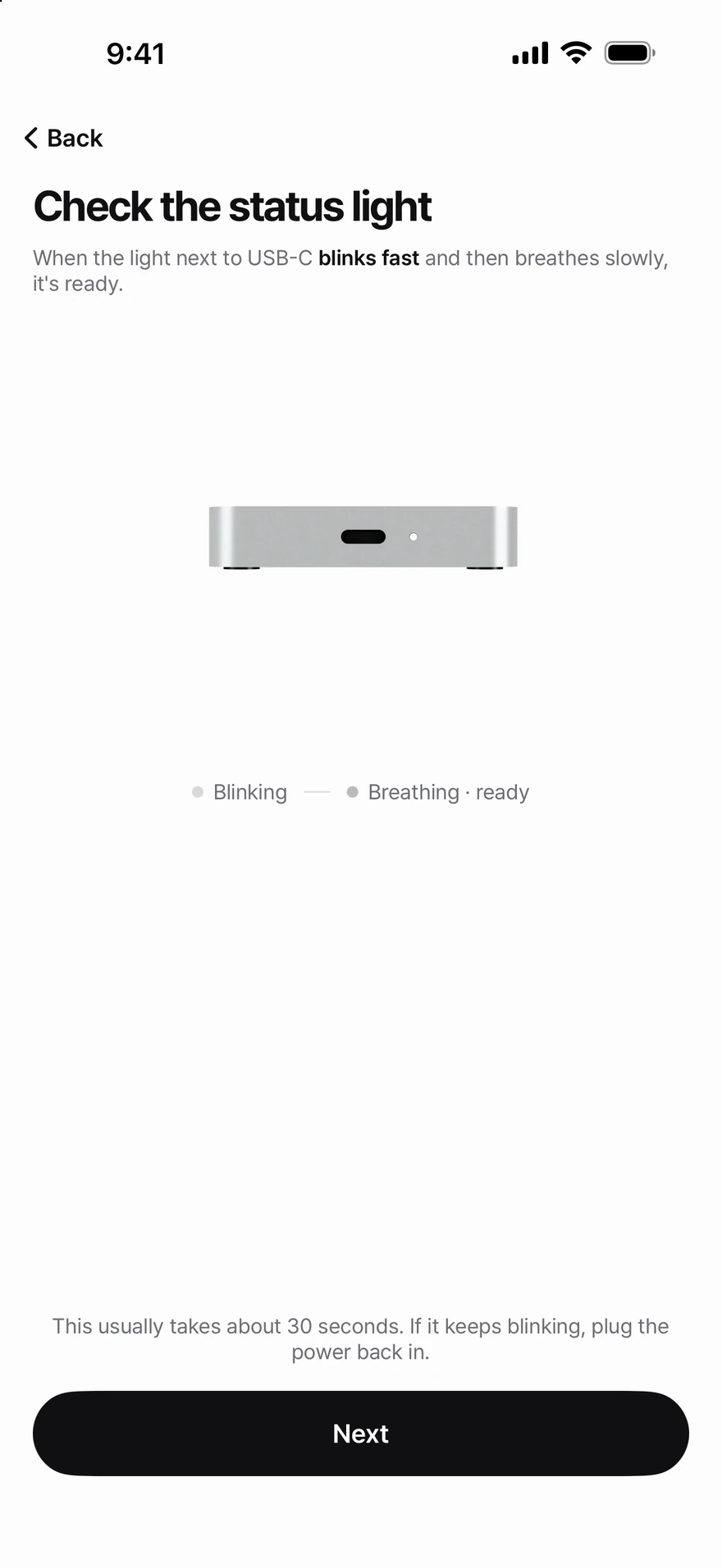
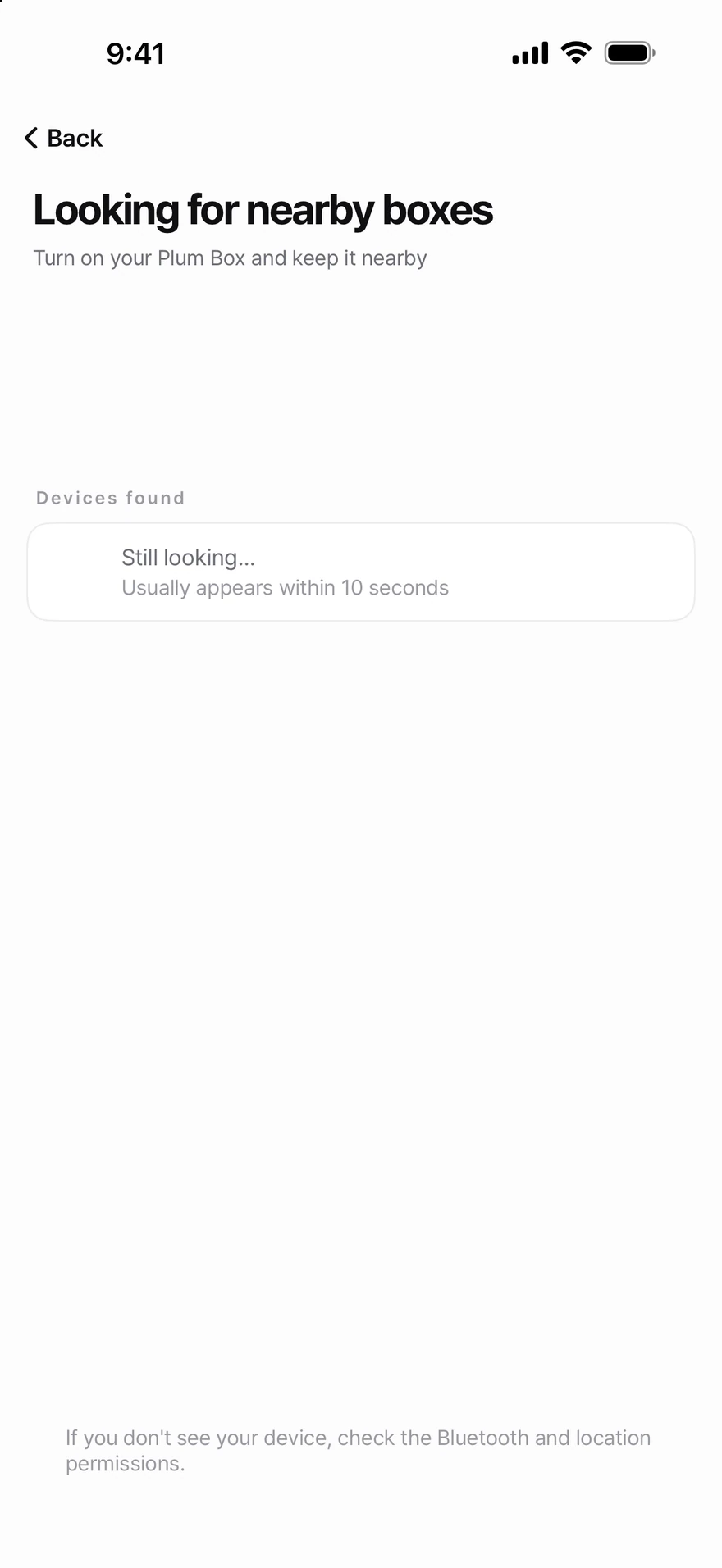
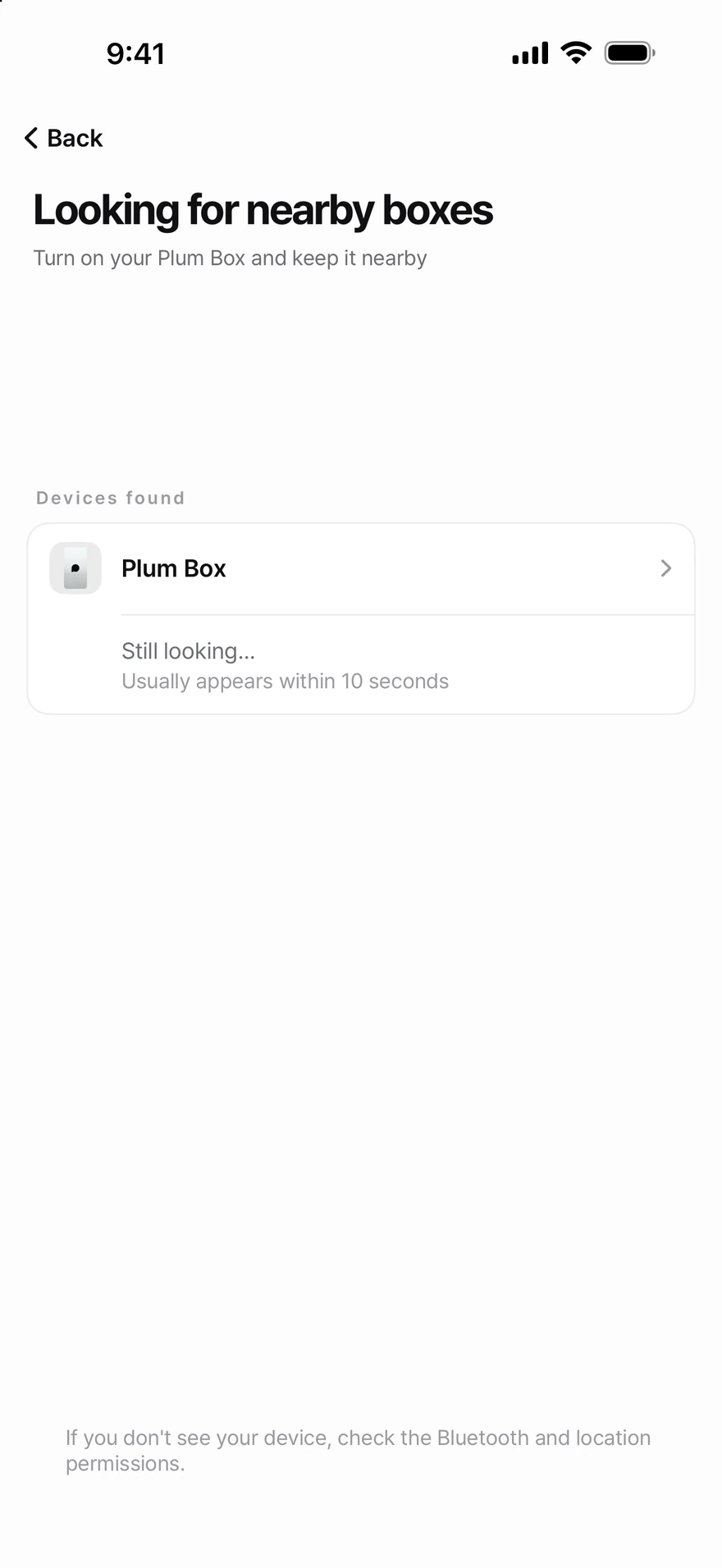
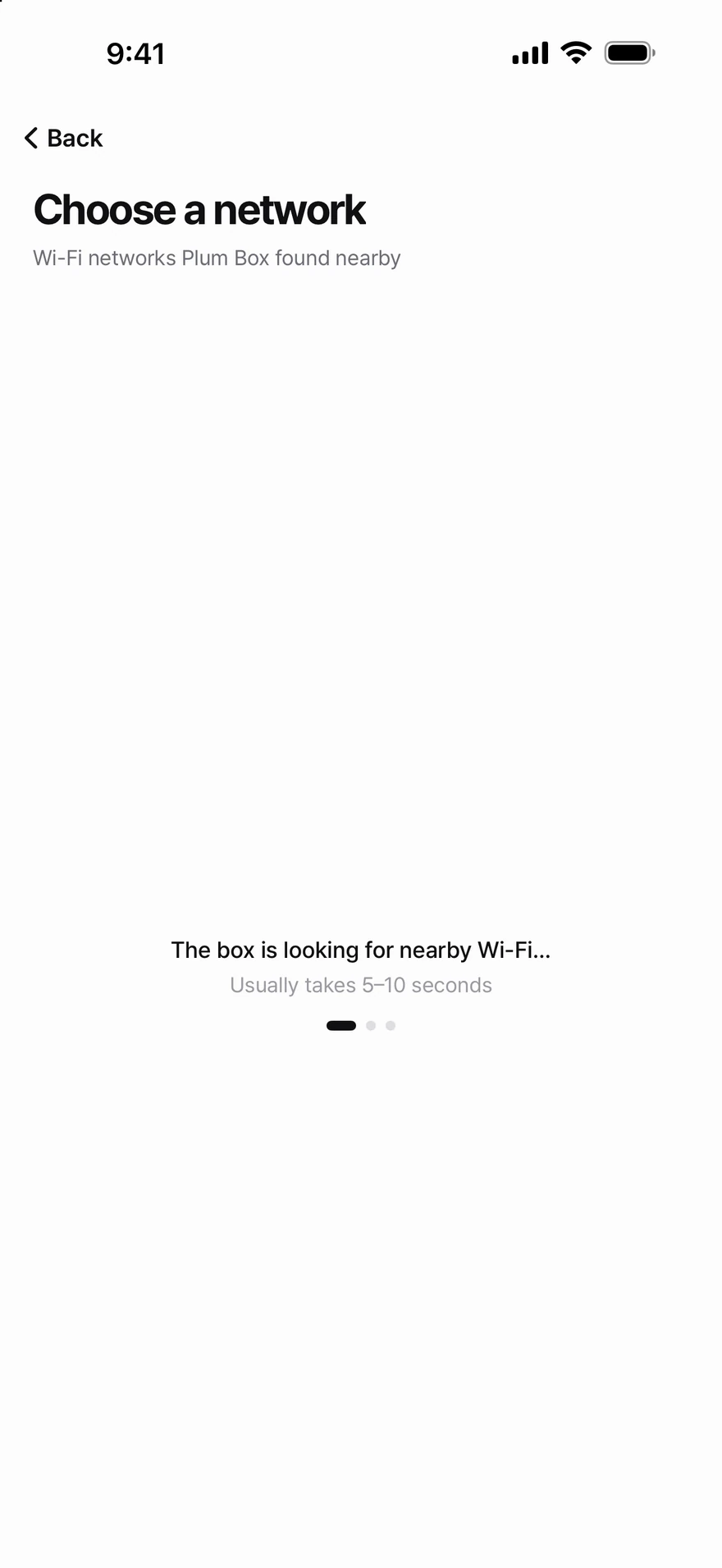
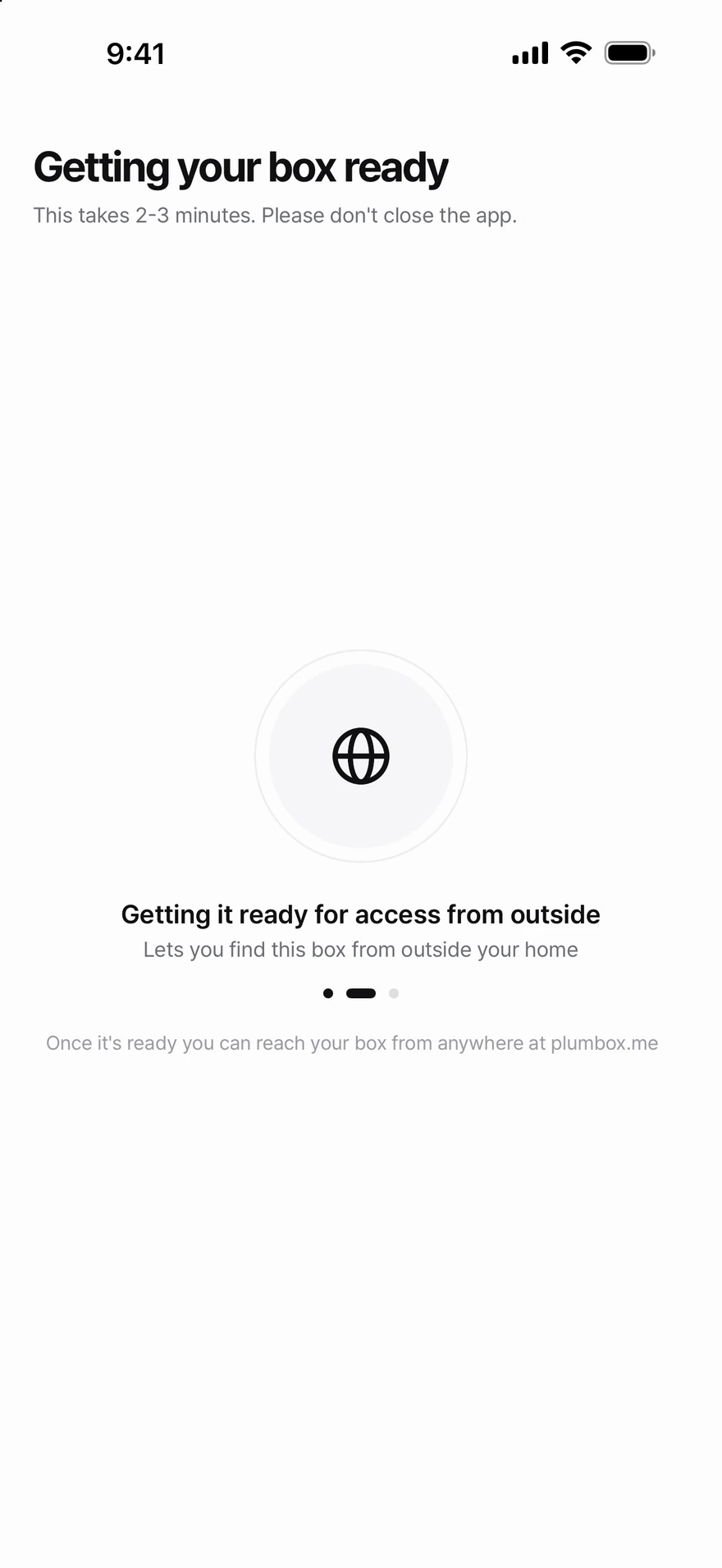
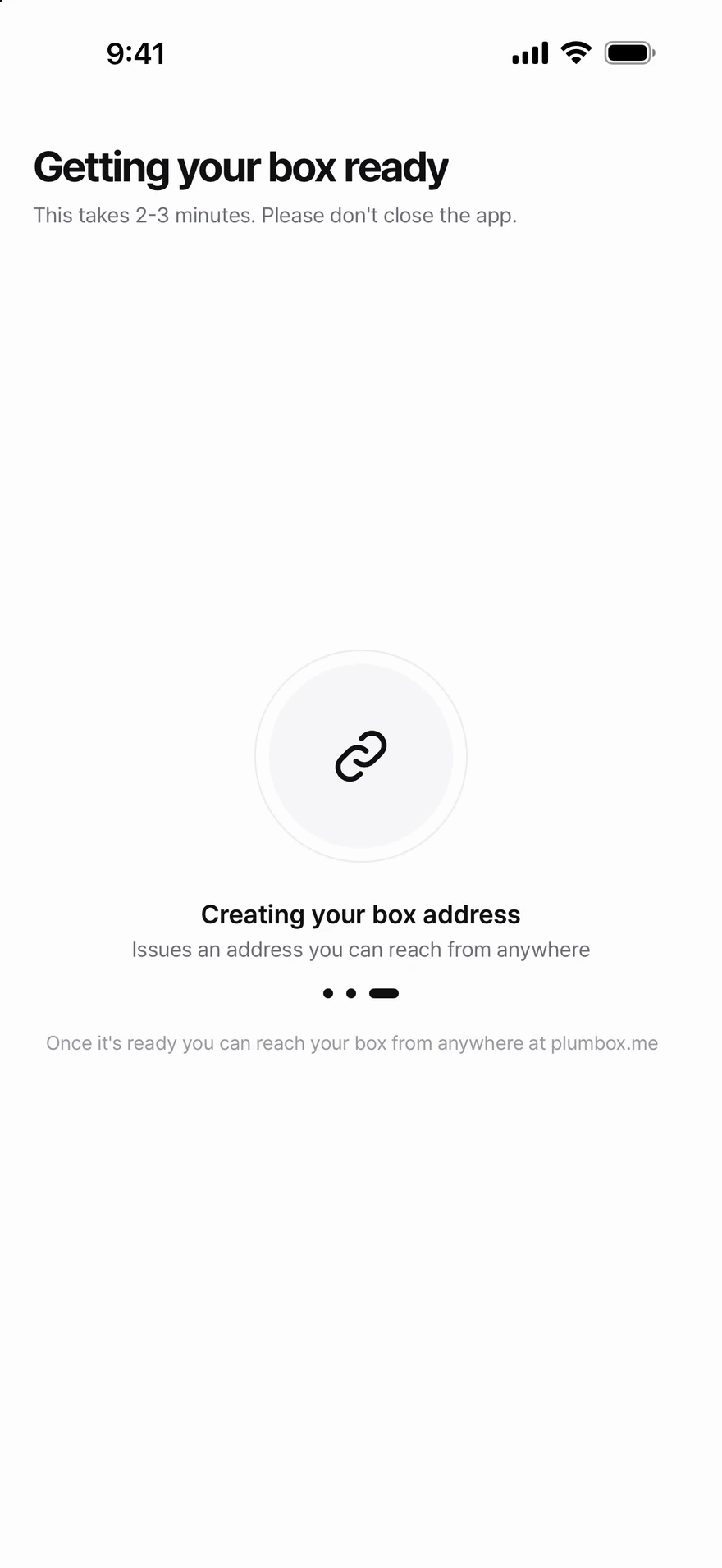
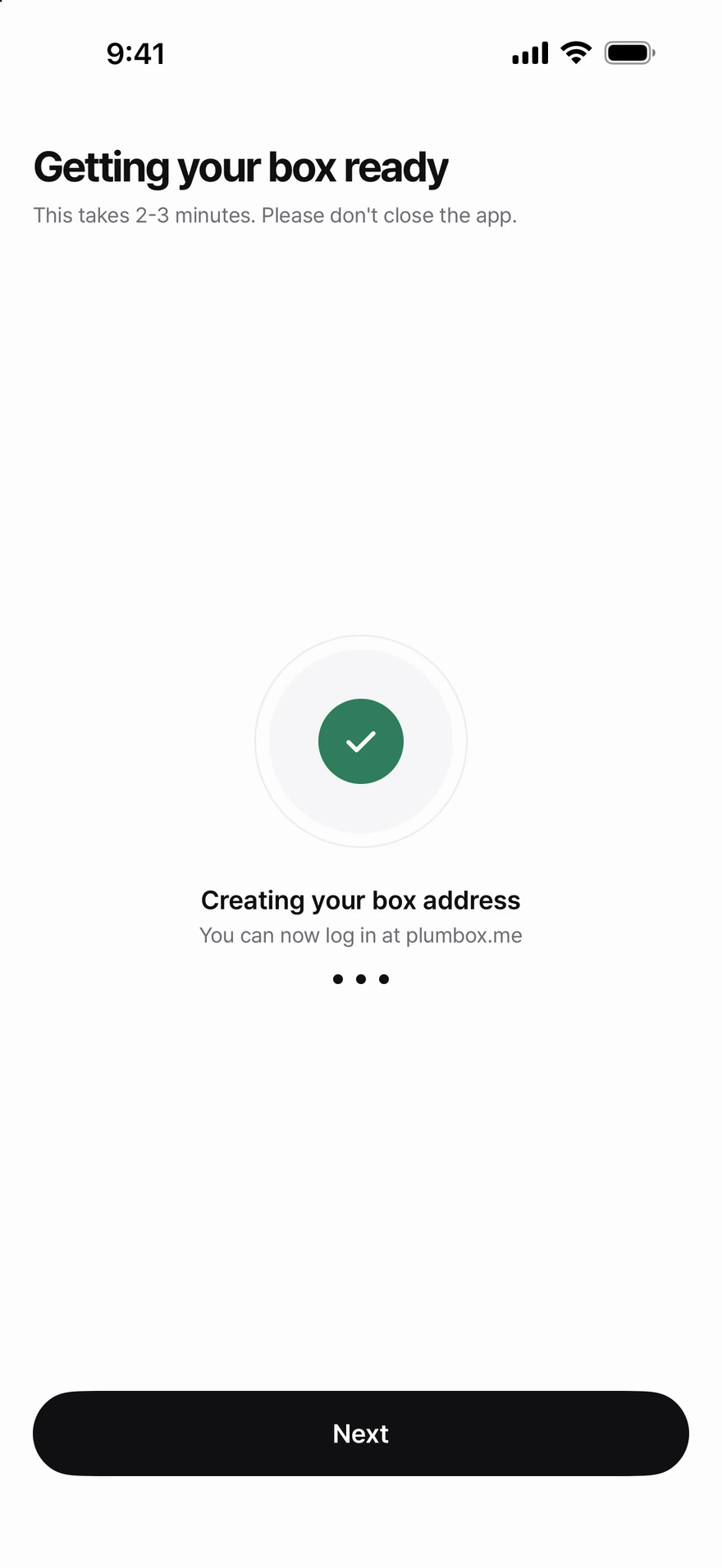
Plug it in. The app does the rest.

There's no address to type and nothing to change on your router. The app takes you from the box in your hands to your first backup, one screen at a time.

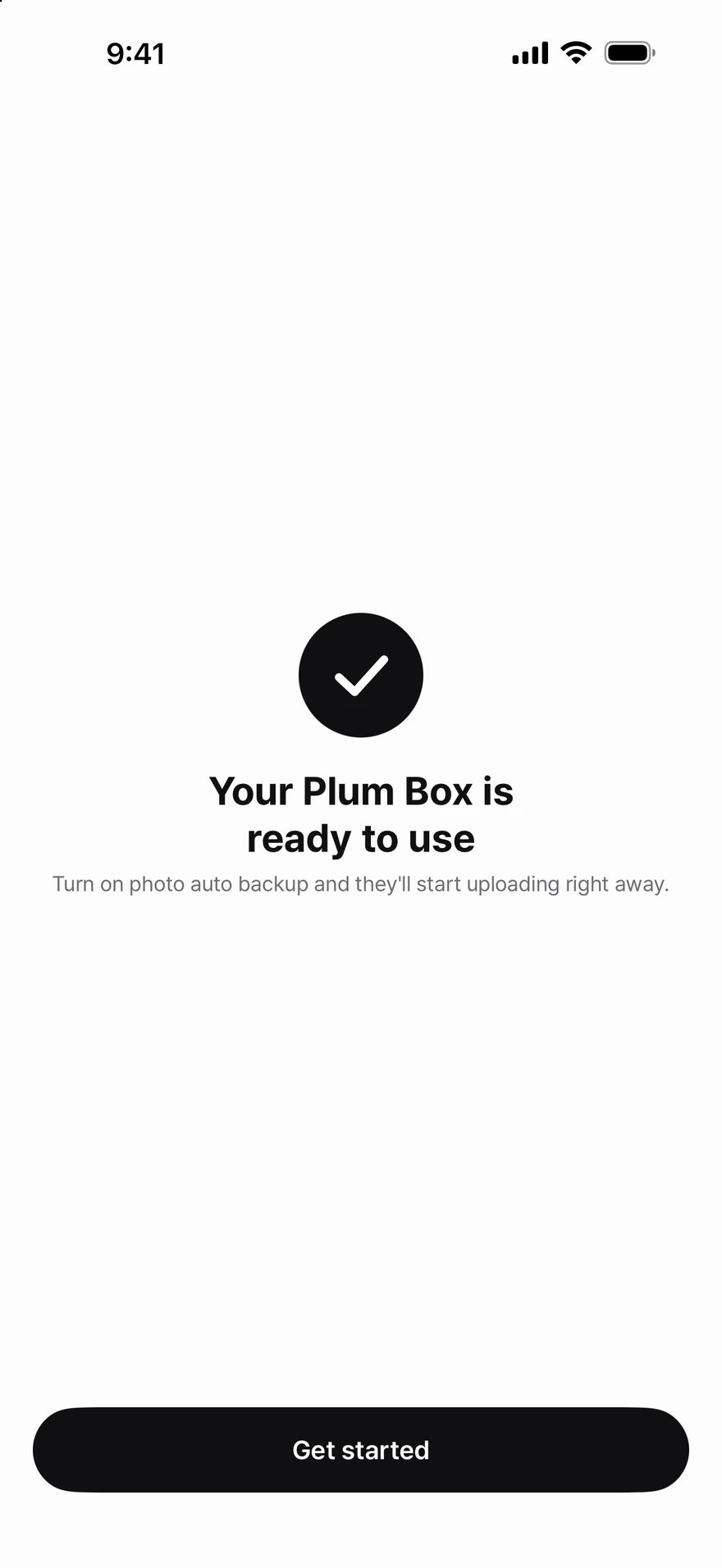
After that you make your account, and photo backup can start right away.

Every day

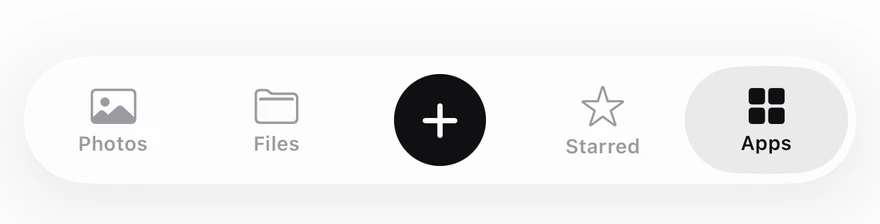
Everything on your box, in four tabs.

Photos, Files, Starred and Apps. Here is what each one does.

Photos

Every photo, kept at home.

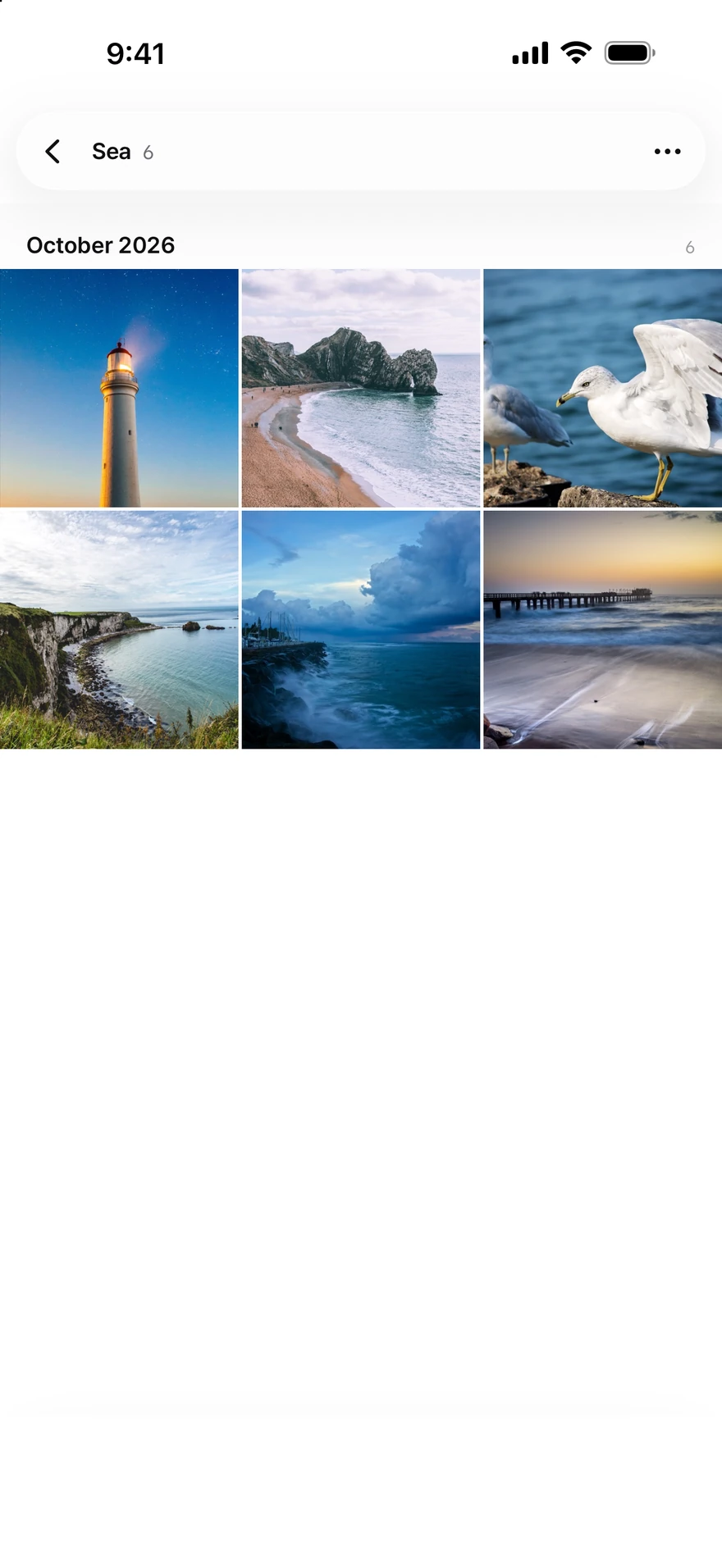
Your phone's photos and videos back up to your Plum Box on their own, and you browse them here.
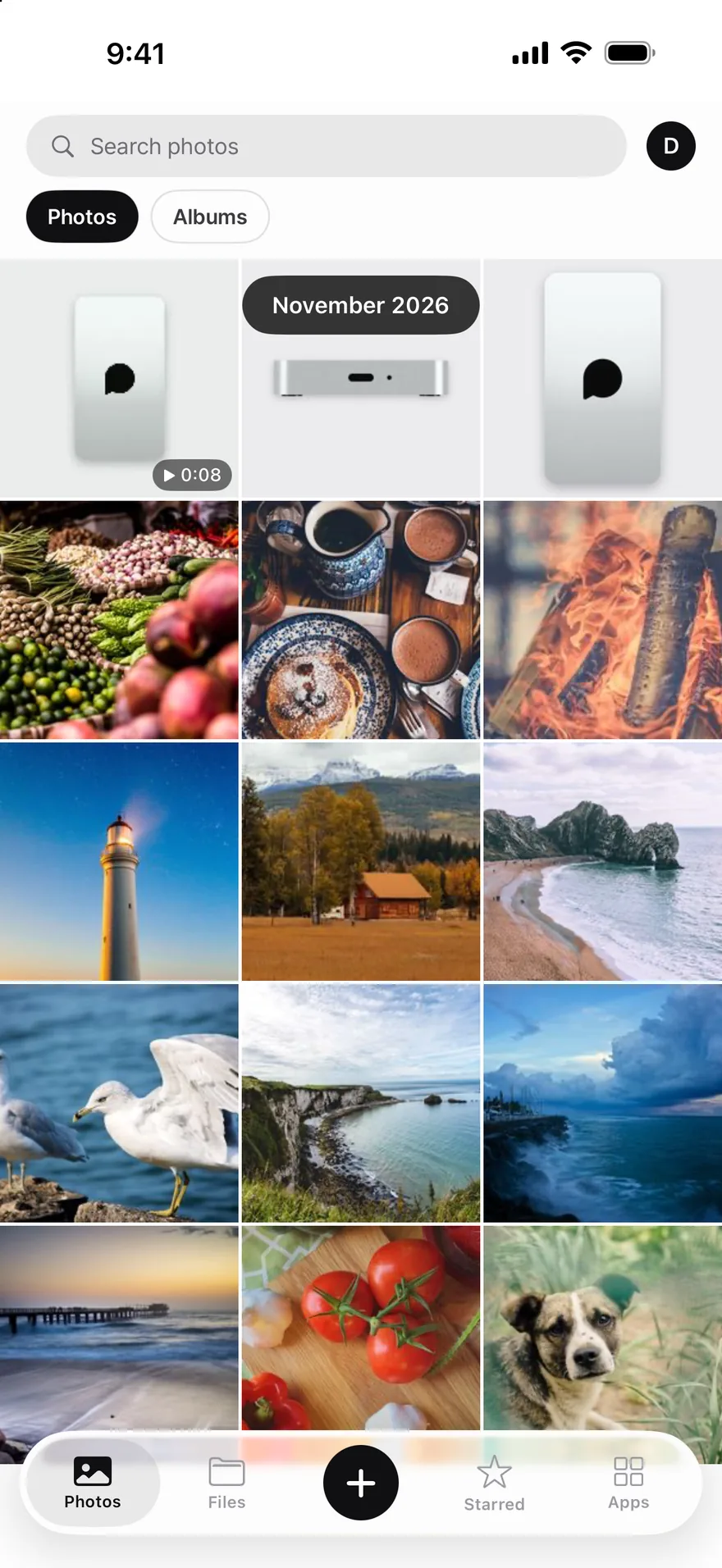
Automatic backup
Choose Wi-Fi only, or only while charging.
Month by month
A small pill at the top shows the month you're looking at as you scroll.
Opens in place
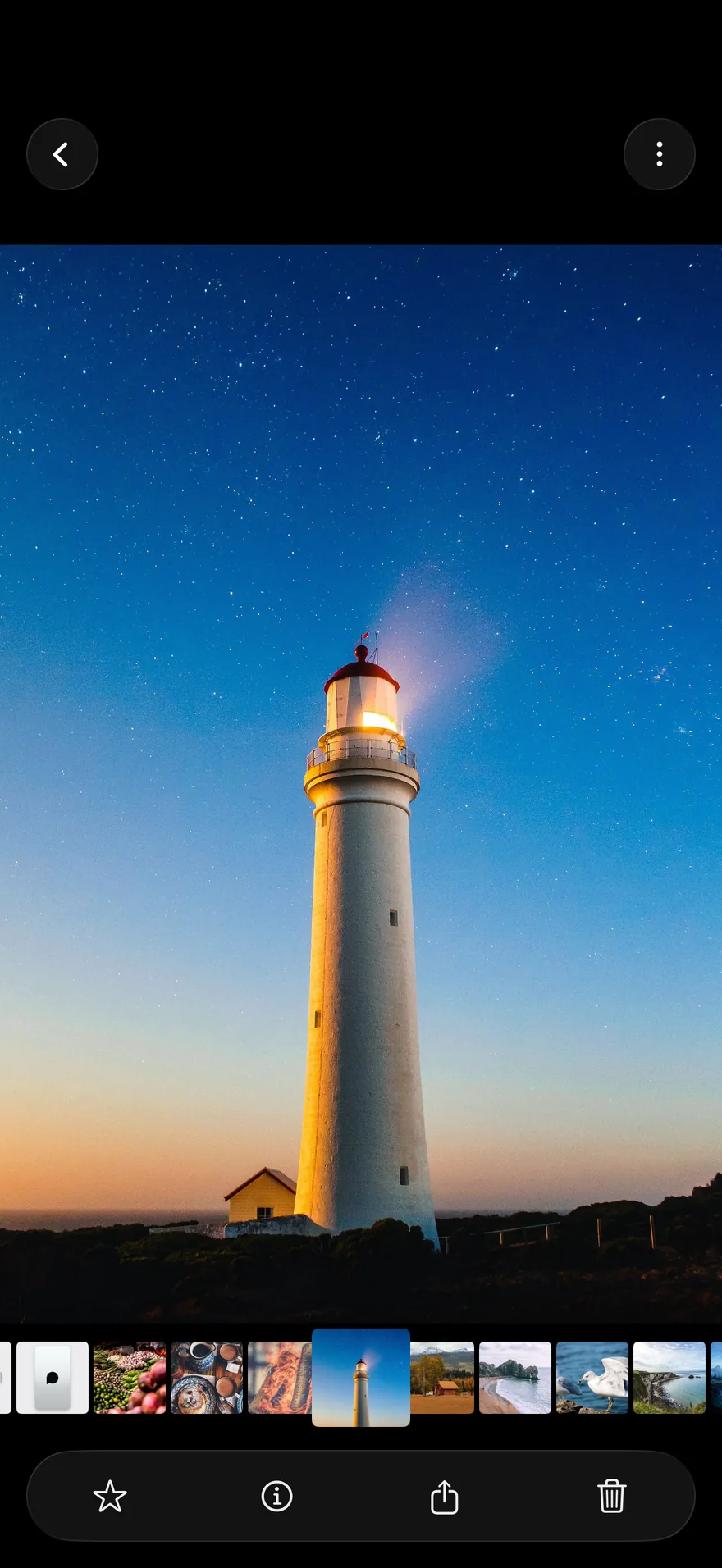
Tap a photo and it grows out of its spot in the grid. Close it and it goes back.

Photos · Albums

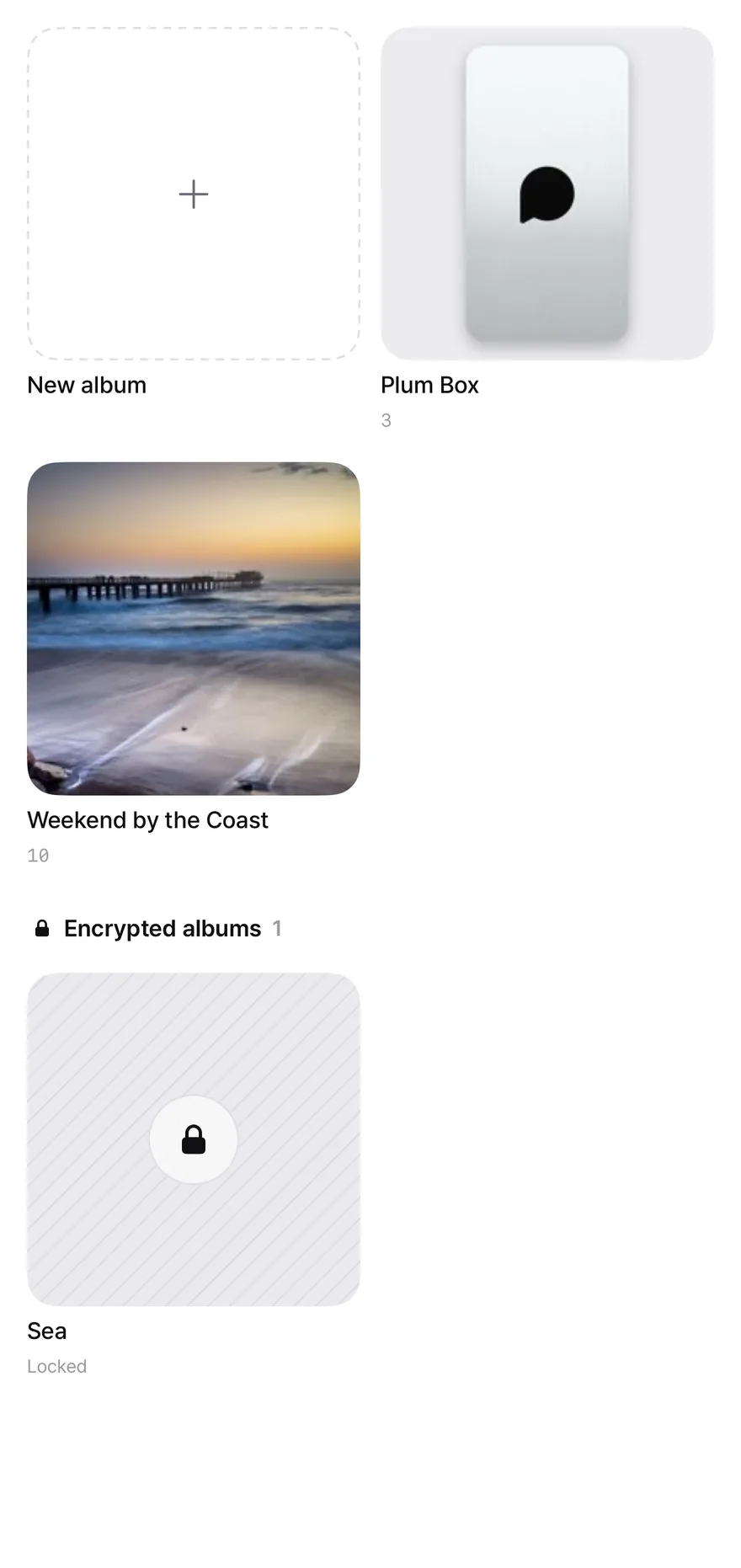
Albums you can lock.

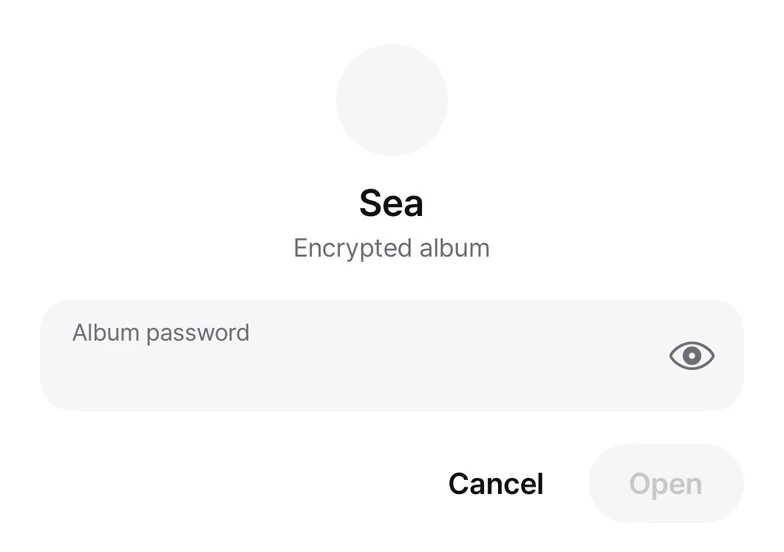
Group photos into albums, and put a password on the ones you'd rather keep to yourself.

Side by side
Photos and Albums sit next to each other. One pill moves between them and the page slides with it.
The lock
Unlock an album and the shackle swings open over the cover. Lock it again and it snaps shut.

Files

Your documents, wherever you are.

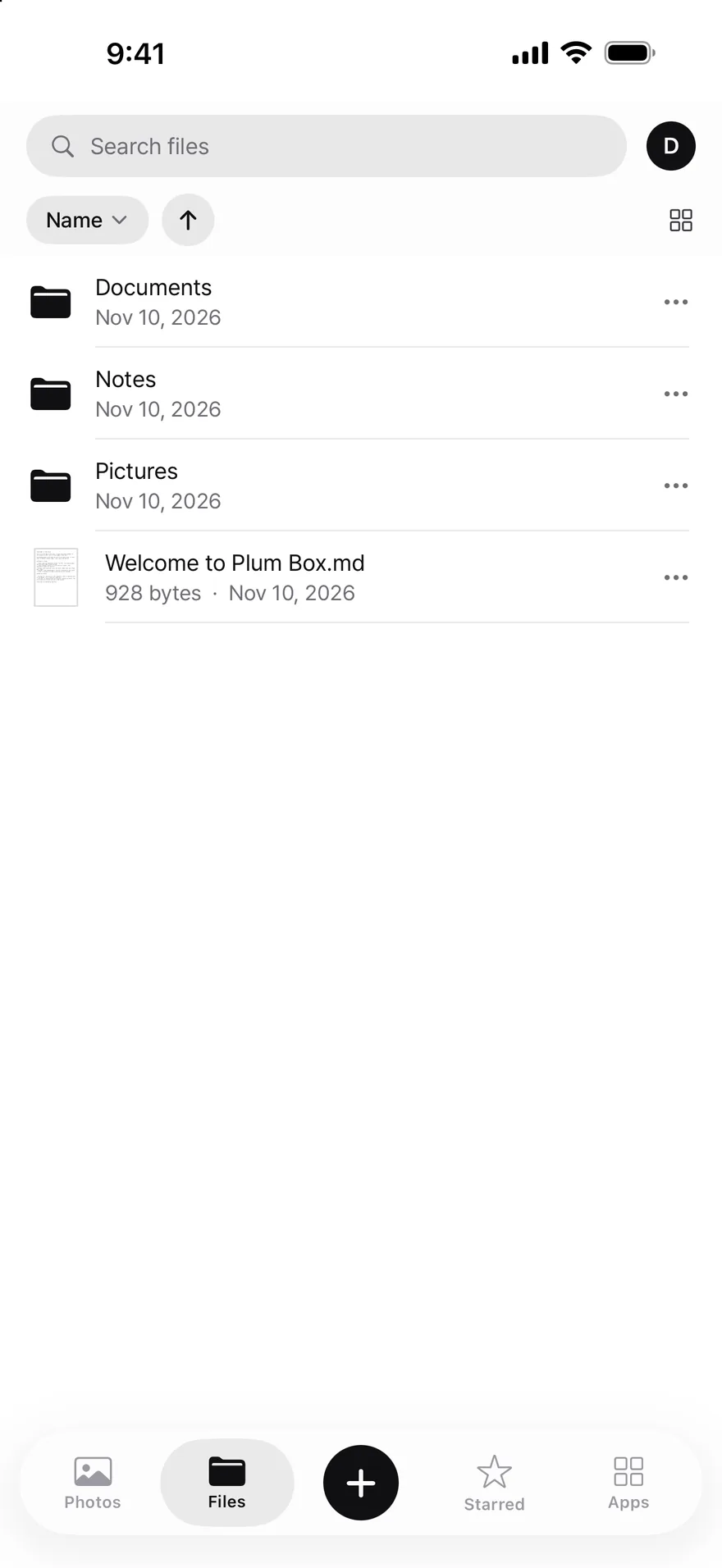
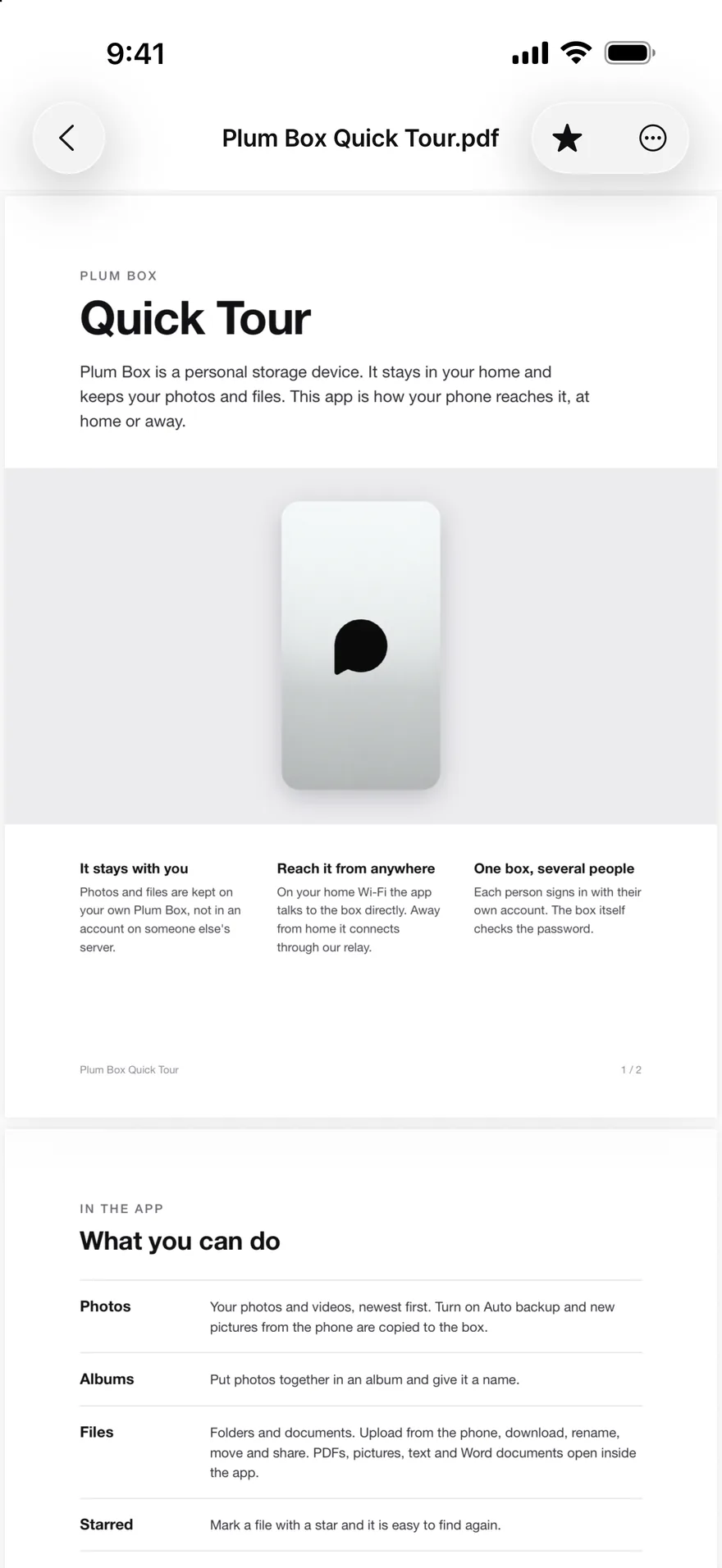
Keep documents in folders on your Plum Box and open them from your phone.

Preview without leaving
PDFs, images, and videos open inside the app. The preview slides in over the list, and going back puts you where you were.
Share with a link
Send a link instead of an attachment.
A locked folder
There's an encrypted folder that opens with its own password.
In your phone's Files app
Your Plum Box shows up there as a location, so other apps can open and save to it.

Starred

What you open most, in one place.

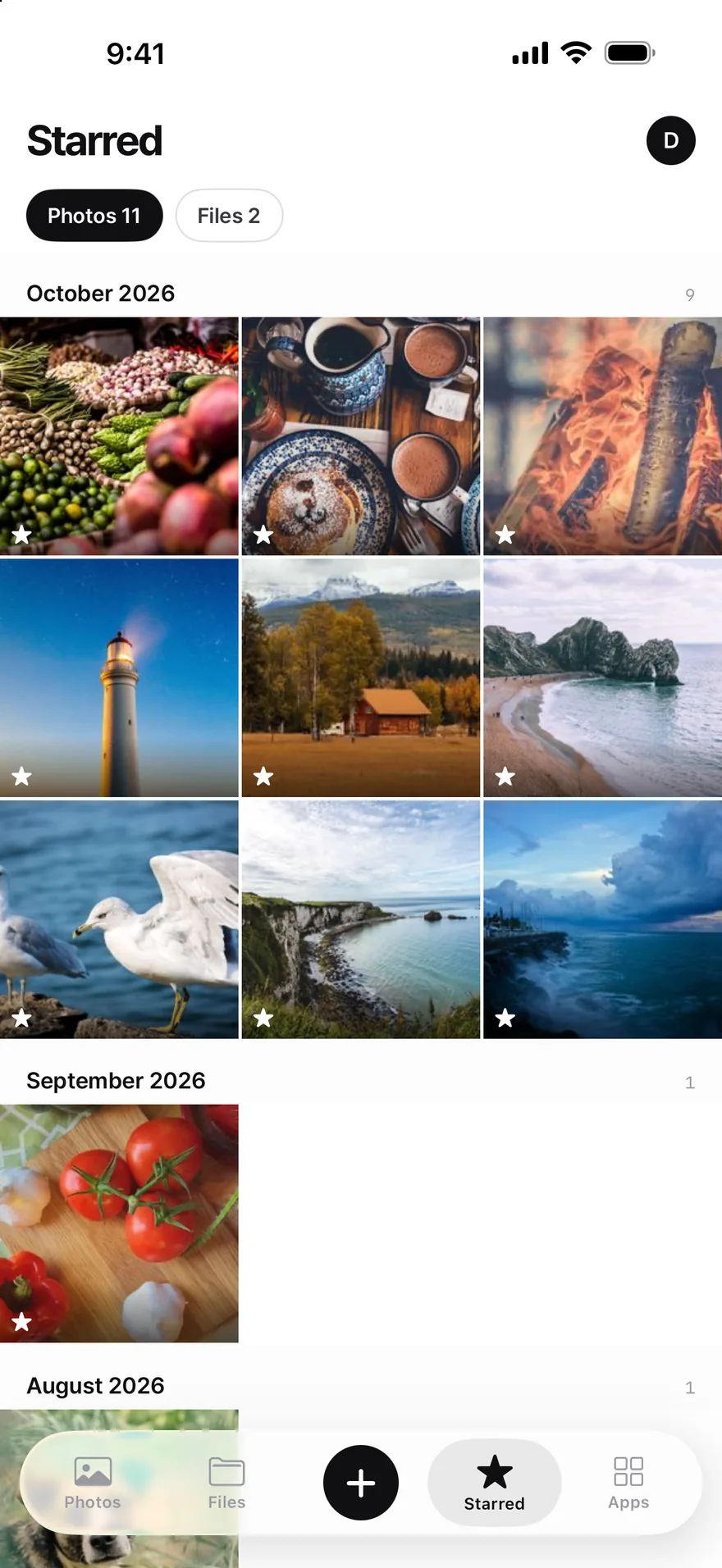
Star a photo or a file and it shows up here, so you don't have to look for it again.

Photos and files, apart
Each gets its own page. Swipe sideways and the pill at the top moves with you.
Back to the top
Tap the tab you're already on and the list scrolls back to the top. That works in every tab.

Apps

Apps that run on your Plum Box.

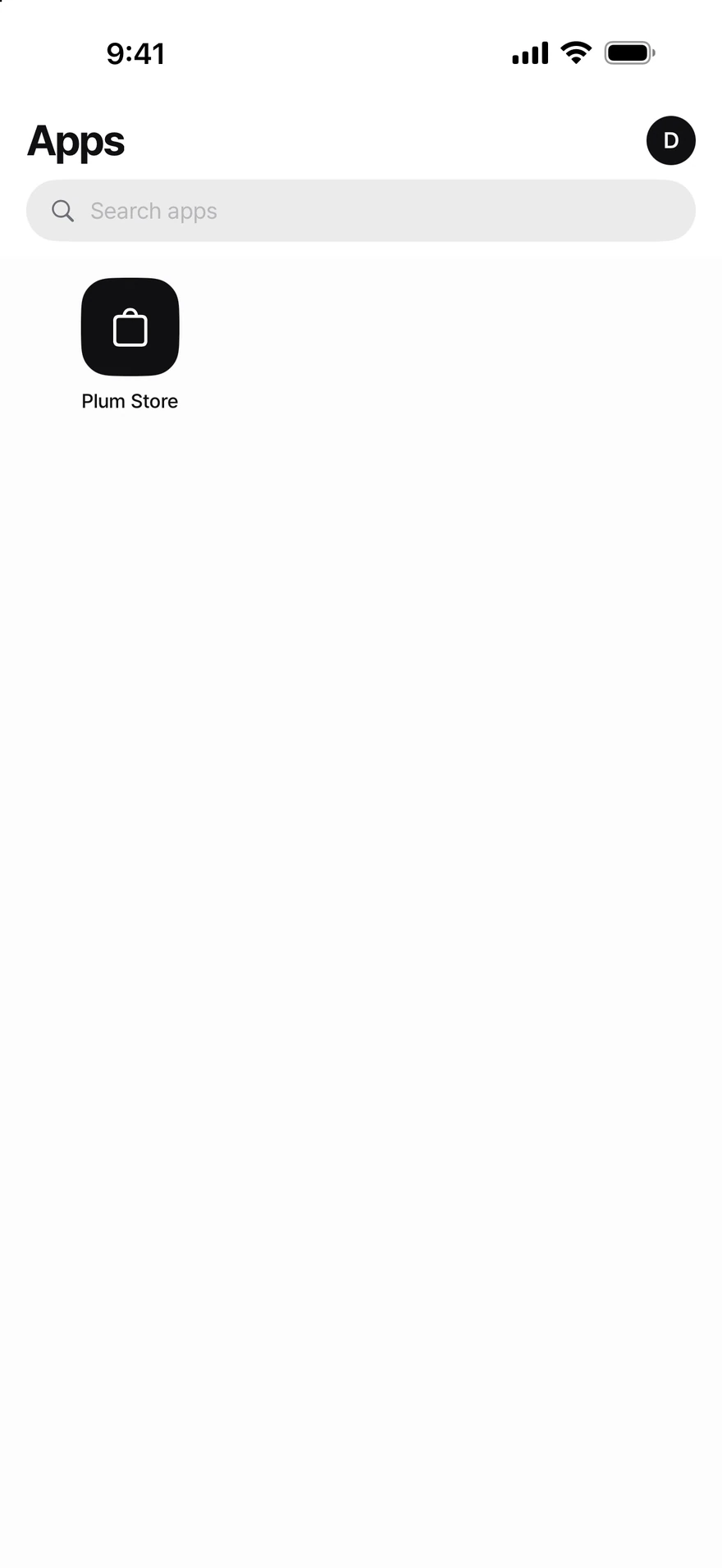
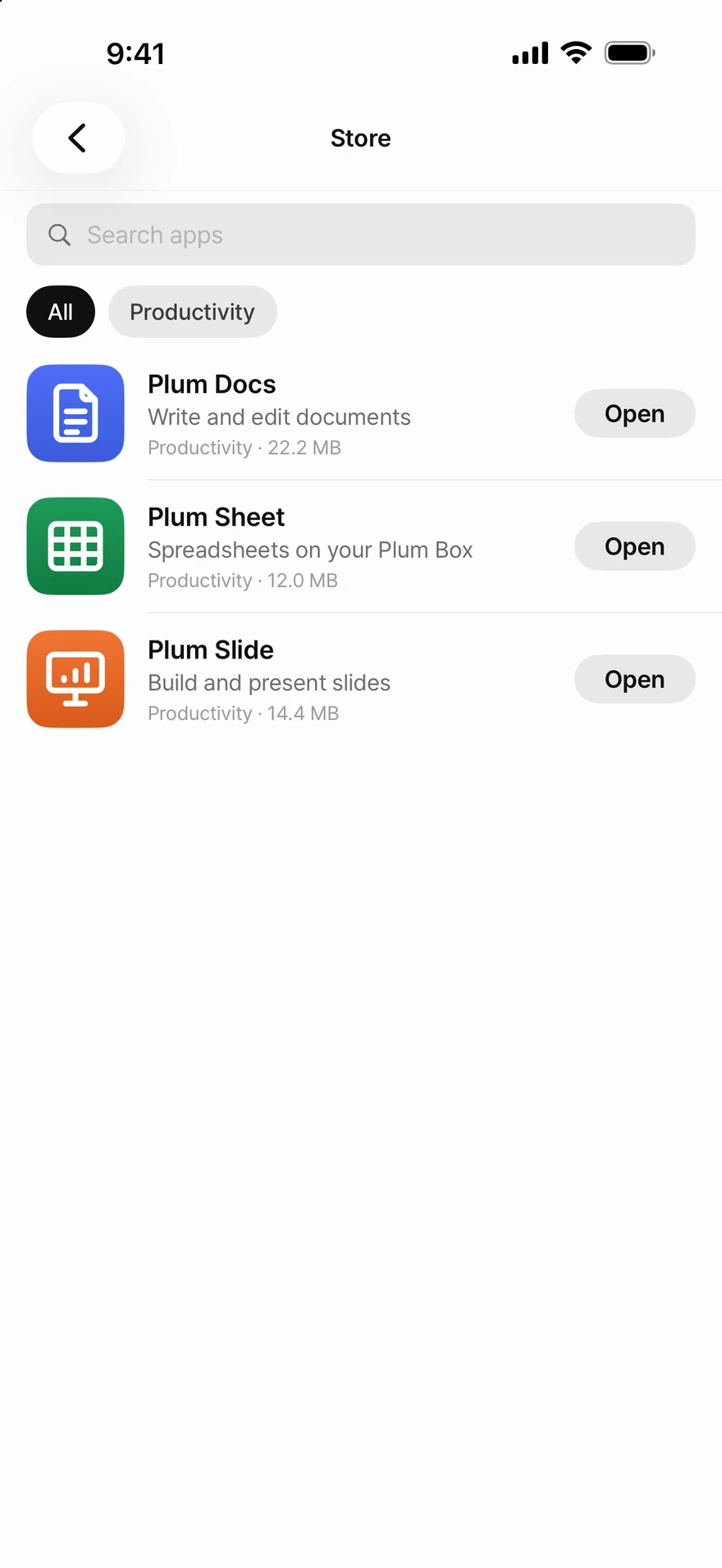
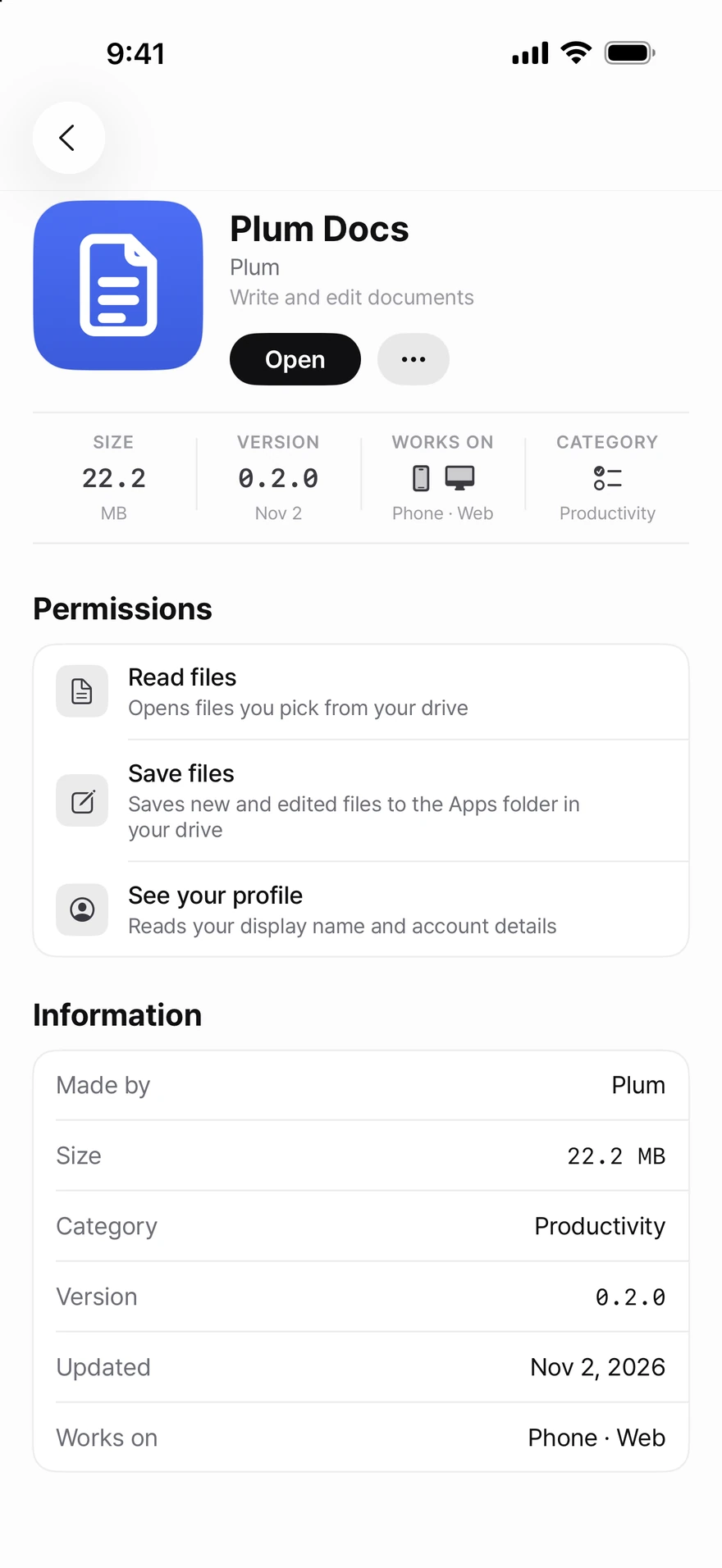
Your Plum Box runs apps of its own. You install them from the Plum Store and open them from this tab.

Plum Store
Browse by category and install what you need. Apps install on your box, not on your phone.
You decide what an app can do
Each app lists what it can do on your box, and you can turn any of it off anytime.
Arrange them your way
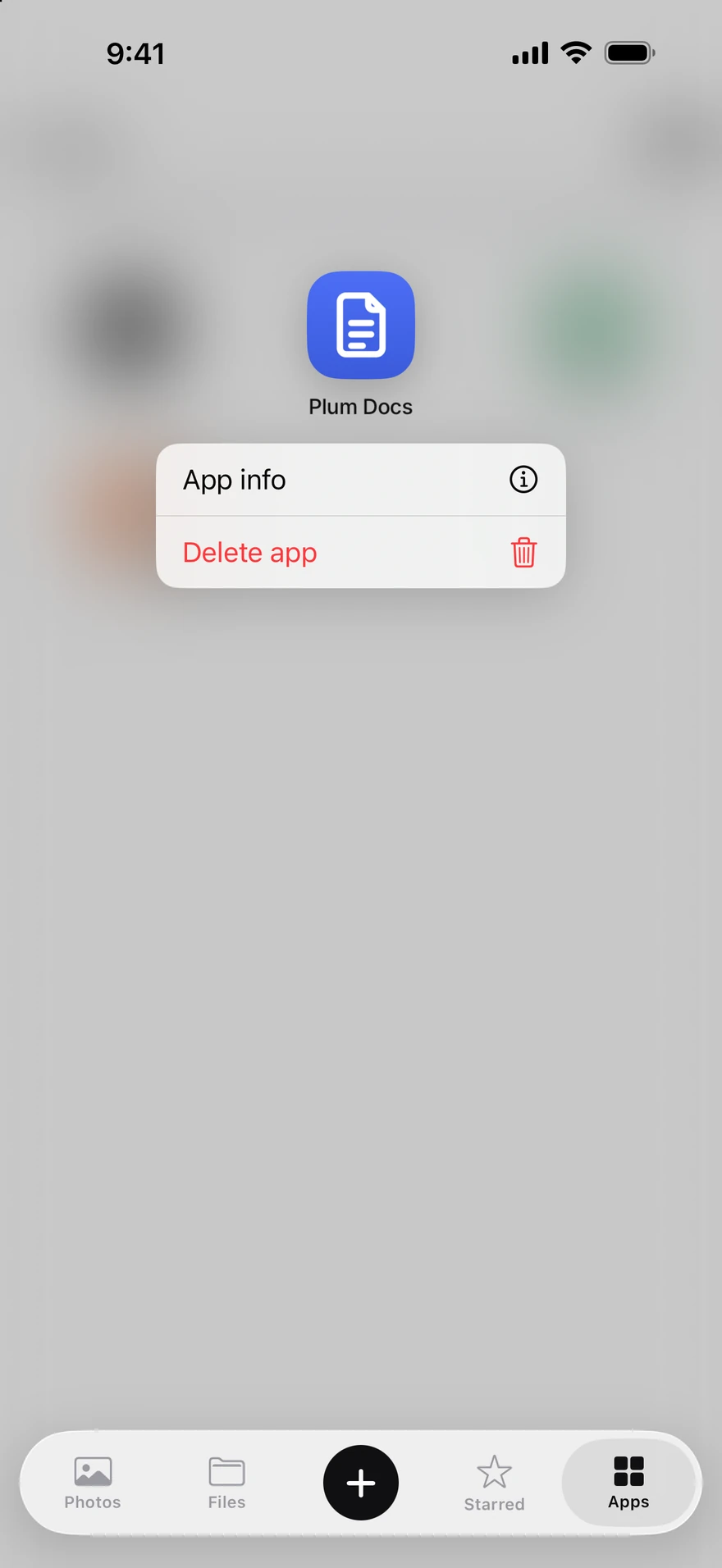
Press and hold an app to move it. Drag it to the bottom of the screen to remove it.
For developers

Build an app for Plum Box.

Apps run on hardware your users own. Write one, test it in the emulator, and publish it to the Plum Store.

  1. 01

    Build

    Service apps, companion apps, and panels with the Panel SDK.

  2. 02

    Test

    An emulator and the plum-dev CLI.

  3. 03

    Publish

    Upload it to Plum Developer. After review it appears in the Plum Store.

Good to know.

From anywhere

At home the app talks to your Plum Box directly over Wi-Fi. Away from home it uses an encrypted connection. There's nothing to set up on your router.

For everyone at home

Invite your family. Each person signs in with their own account.

Private by design

Everything stays on your Plum Box. No ads, no tracking, no monthly storage fees, and two-step verification when you want it.

On your computer

On Mac, Windows and Linux, too.

Open, upload and download the photos and files on your Plum Box from your computer. New versions show up in the app's settings.

macOS

For Macs with Apple silicon (M1 or later), macOS 15 or later.

Windows

For 64-bit (x64) PCs with Windows 10 (22H2) or Windows 11.

Coming soon

Linux

For x86-64: an AppImage, or a .deb or .rpm package. Ubuntu 24.04, Fedora 40 or later.

Get the app.

This app works with a Plum Box. You need one to use it.